Blog · AI Agent News · Safety & policy VIEN
Apple Music Eats 8–11 GB With Zero Downloads: How to Fix It
Streaming only, yet Apple Music takes up 8–11.5 GB on your iPhone? See why Lossless caching bloats Documents & Data and 4 safe ways to clear it.
In this article
When an iPhone flashes a "Storage Almost Full" warning, most owners blame camera-roll videos or vague iOS system files. Checking iPhone Storage often points to a surprise culprit: the built-in Apple Music app quietly holding onto gigabytes of hidden cache.
99.1 MB app size vs. 8.16 GB to 11.55 GB of hidden data
The Apple Music app itself takes up roughly 100 MB, yet its Documents & Data bucket can swell to 80–110 times that size even when users never download tracks offline.
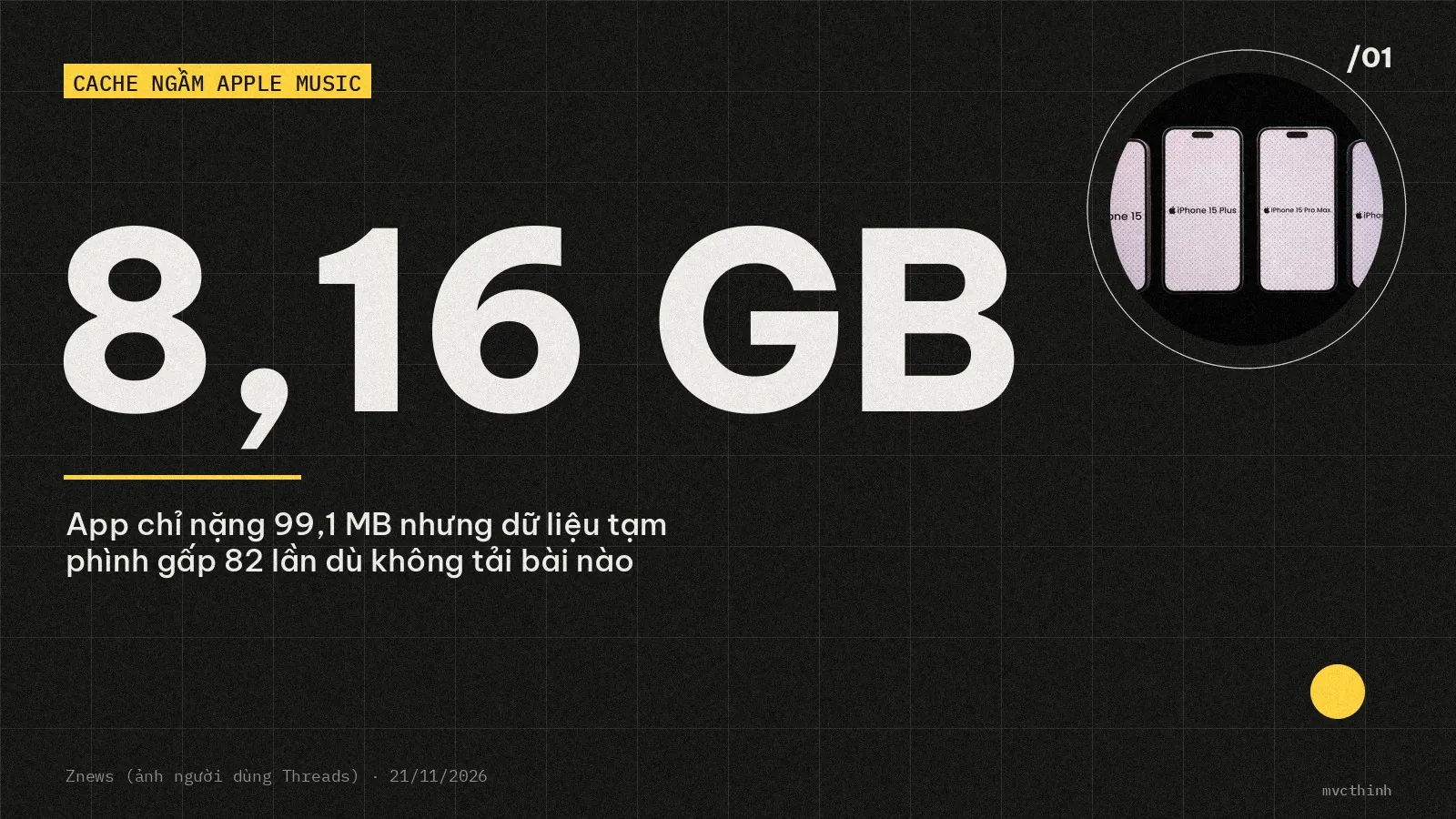
According to Znews (November 21, 2026), an iPhone user on Threads shared an iPhone Storage screenshot showing the Apple Music app at 99.1 MB while Documents & Data hit 8.16 GB despite streaming only. Similar cases appear across r/AppleMusic: one Reddit user in September 2026 saw ~8 GB used against just 70 MB of downloads, while a July 2026 report logged 105.8 MB for the app and 214.8 MB of downloads alongside 11.55 GB in Documents & Data.
Apple explains that streaming music, video, or artwork saves temporary cache files locally so tracks start instantly and resist shaky connections. The catch is that Apple Music has no manual cache-clearing option on iOS. While iOS is built to purge temporary files when storage runs low, automatic cleanup often lags behind. This silent disk bloat echoes how NVIDIA driver logs were flagged for writing up to 30 GB per hour to SSDs in the background without users noticing.
6x to 24x per track: how Lossless accelerates cache bloat
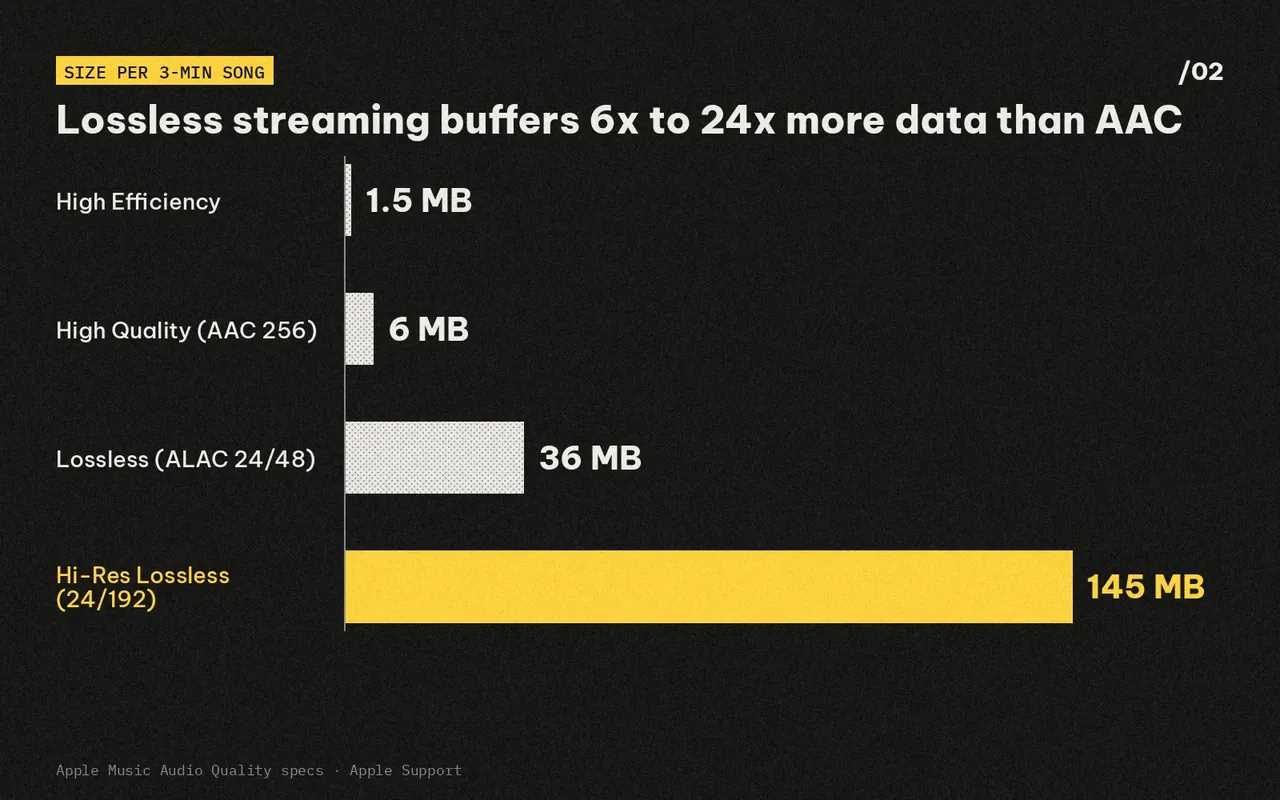
Switching streaming from standard AAC to Lossless or Hi-Res Lossless multiplies the size of every cached 3-minute song by 6x to over 24x, filling gigabytes of temporary storage within days.
| Apple Music Quality Setting | Codec / Resolution | Est. Size (3-min song) | Multiplier vs. High Quality |
|---|---|---|---|
| High Efficiency | Low-bitrate AAC | ~1.5 MB | 4x smaller |
| High Quality | AAC 256 kbps | ~6 MB | 1x baseline |
| Lossless | ALAC up to 24-bit/48 kHz | ~36 MB | 6x larger |
| Hi-Res Lossless | ALAC up to 24-bit/192 kHz | ~145 MB | 24x+ larger |
These figures come straight from Apple Music's Audio Quality settings. More importantly, Apple Support confirms that Bluetooth connections on wireless headphones—including AirPods (3rd generation and earlier), AirPods Pro 1, AirPods Pro 2 with Lightning case, and wireless AirPods Max—stream over AAC, not true lossless. Playback above 48 kHz (Hi-Res Lossless) on an iPhone also requires an external DAC.
 Also readAI Roundup Nov 20: Google and Meta Race on AI Agents
From 5.29 GB down to under 1 GB: 4 steps without losing playlists
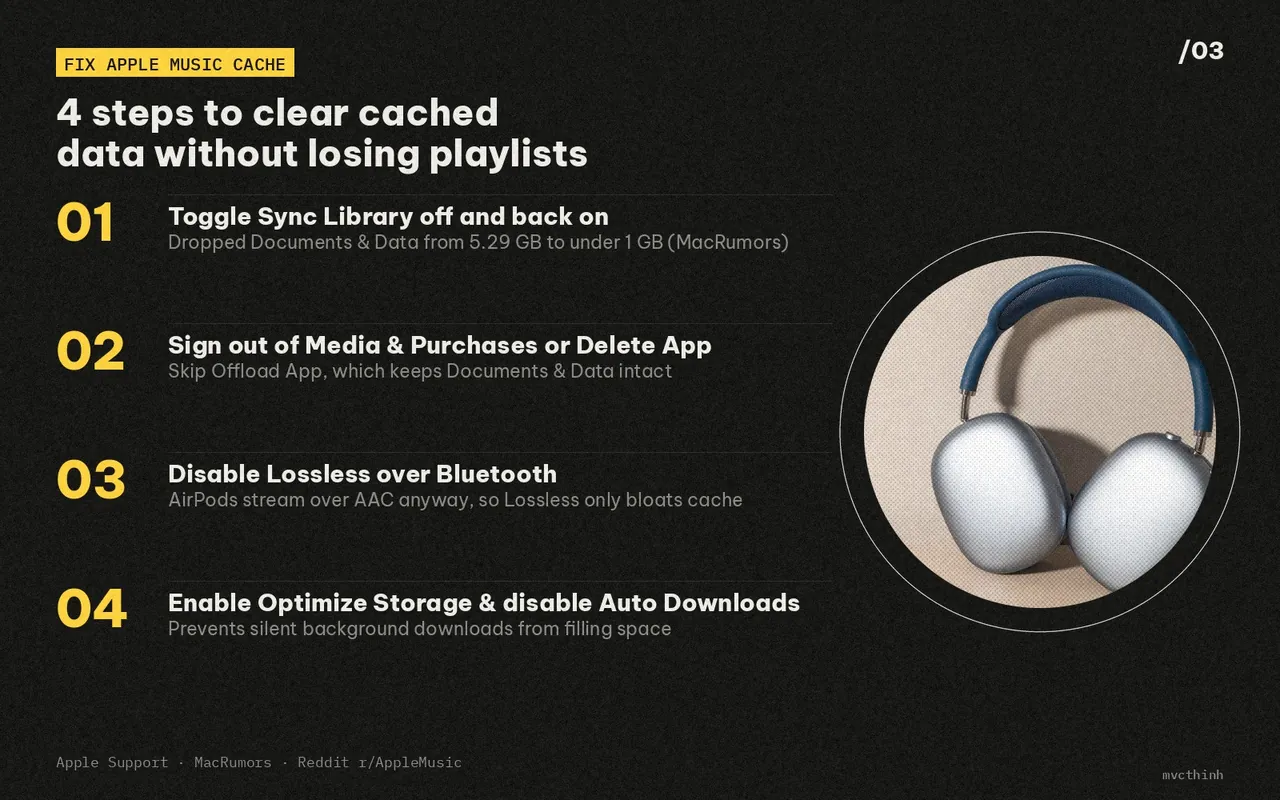
The quickest non-destructive fix is toggling Sync Library off and back on—a workaround that cut Documents & Data from 5.29 GB to under 1 GB for a MacRumors Forums user (and from 5.92 GB to 3.55 GB for another member).
Follow these four steps to reclaim space while keeping your cloud library and playlists safe:
- Toggle Sync Library off and on: Open
Settings > Apps > Music(orSettings > Musicon older iOS), turn off Sync Library, wait a few minutes or restart your iPhone, and turn it back on. Cloud playlists resync intact, though offline downloads will need to be re-downloaded. - Sign out of Media & Purchases or choose Delete App: If storage barely drops, go to
Settings > [Your Name] > Media & Purchases > Sign Outand sign back in (confirmed by Reddit users to clear8 GBcaches), or openSettings > General > iPhone Storage > Music, tap Delete App, and reinstall. Avoid Offload App, which keeps all Documents & Data intact.
- Disable Lossless for Bluetooth or cellular streaming: Under
Settings > Apps > Music > Audio Quality, turn off Lossless Audio (or pick High Quality AAC) unless you use wired headphones with a DAC. - Enable Optimize Storage and turn off Automatic Downloads: In
Settings > Apps > Music, turn on Optimize Storage so iOS automatically drops older tracks when space is tight, and disable Automatic Downloads.
As seen with Apple and Microsoft cloud sync outages, knowing what stays cached locally versus what lives in iCloud prevents plenty of storage surprises.
My take: check hidden app caches before deleting photos
The core UX flaw here is opacity. Rival streaming and social apps provide a one-tap Clear Cache button, whereas Apple Music hides cache controls completely and leaves users hunting through forums for Sync Library resets.
Before you delete photos or pay for another storage tier on a 128 GB iPhone, take 10 seconds to inspect Settings > General > iPhone Storage. Checking Documents & Data inside Apple Music often frees gigabytes right away without losing a single memory.
Sources
- Vì sao chỉ nghe trực tuyến, Apple Music vẫn chiếm chục GB bộ nhớ? Znews
- About lossless audio in Apple Music Apple Support
- Apple Music Documents and Data MacRumors Forums
 Safety & policy · Nov 21, 2026Nvidia Without Jensen Huang: Where Do CUDA and GPUs Go?
Analyzing Nvidia after Jensen Huang: the 60-report leadership gap, Claude Mythos and AMD pressure on CUDA, and what GPU buyers face next.
 Coding agents · Nov 21, 2026Apple's Computer-Use AI Agent Listing and What It Means for Mac
Analysis of Apple's proactive AI agent job listing, how it compares with Gemini on Mac, and macOS 27.3 permission splits for Mac…
 Agent basics · Nov 20, 2026Meta Muse Signal & Bank Balance Report: Fact vs. Fiction
Inside the Nov 18, 2026 Reuters report on Meta Muse: who blew the whistle, verified vs. unverified claims, cloud leak paths, and…